
Gmail Hacks for 2023
If you’re like me, email is your nemesis. You need it. It’s necessary, but it’s a monumental time suck. The second you reach inbox zero, a whole new crop of messages comes wailing in. So, what can you do to stop feeling like Sisyphus and his rock?
Let’s start with a little review
Inbox zero is a term coined by writer and speaker Merlin Mann. It refers to the practice of keeping your email inbox empty. This means taking action on all emails received to stay organized and keep up with your to-dos.
Do you remember when Marie Kondo’s The Life-Changing Magic of Tidying Up: The Japanese Art of Decluttering and Organizing was all the rage? Inbox Zero is like that without the sparking joy part. I take that back; an empty inbox definitely sparks joy.
Once an email comes into your inbox, you decide whether to delete it, archive it, or take action on it. Delegate or complete any action items to keep the number of emails in your inbox at zero. It’s important to note that inbox zero doesn’t mean you should delete emails without reading them. Rather, it encourages you to read your emails and become more productive with your time.
This approach lets you focus more time on projects rather than sorting emails. Inbox zero is all about staying organized and managing your time. Doesn’t that sound great?
Readjusting how you use email will save time and let you work distraction-free!
Gain control over your inbox
Turn off Notifications
Nothing interrupts work like the ding of new email coming into your inbox. Follow these steps to turn off those pesky notifications.
- Open Gmail.
- At the top right, click Settings.
- Scroll to “Desktop notifications.”
- To turn off email notification sounds, select None.

- Scroll to the bottom and click Save Changes.
Use Email Templates
If you send certain messages often, like follow-up reports, save time with templates. Once the template is ready, you can copy and paste it into new emails. Then, you can edit it without crafting an email from scratch every time.
How to enable email templates in Gmail
- In Gmail, click the settings gear in the top right corner.
- Click See All Settings.
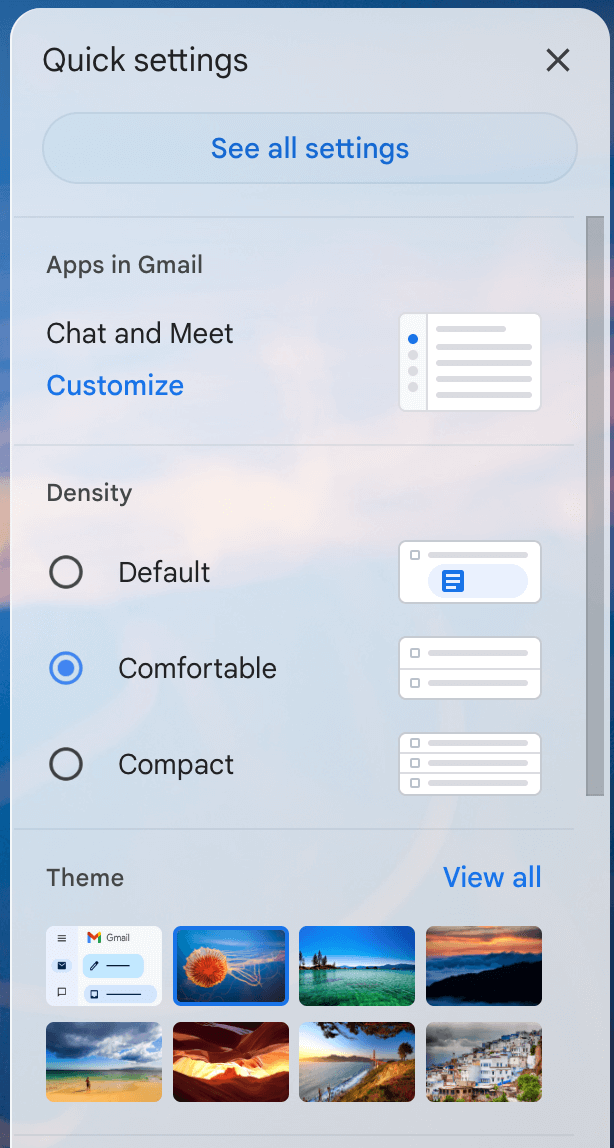
- At the top, click Advanced.
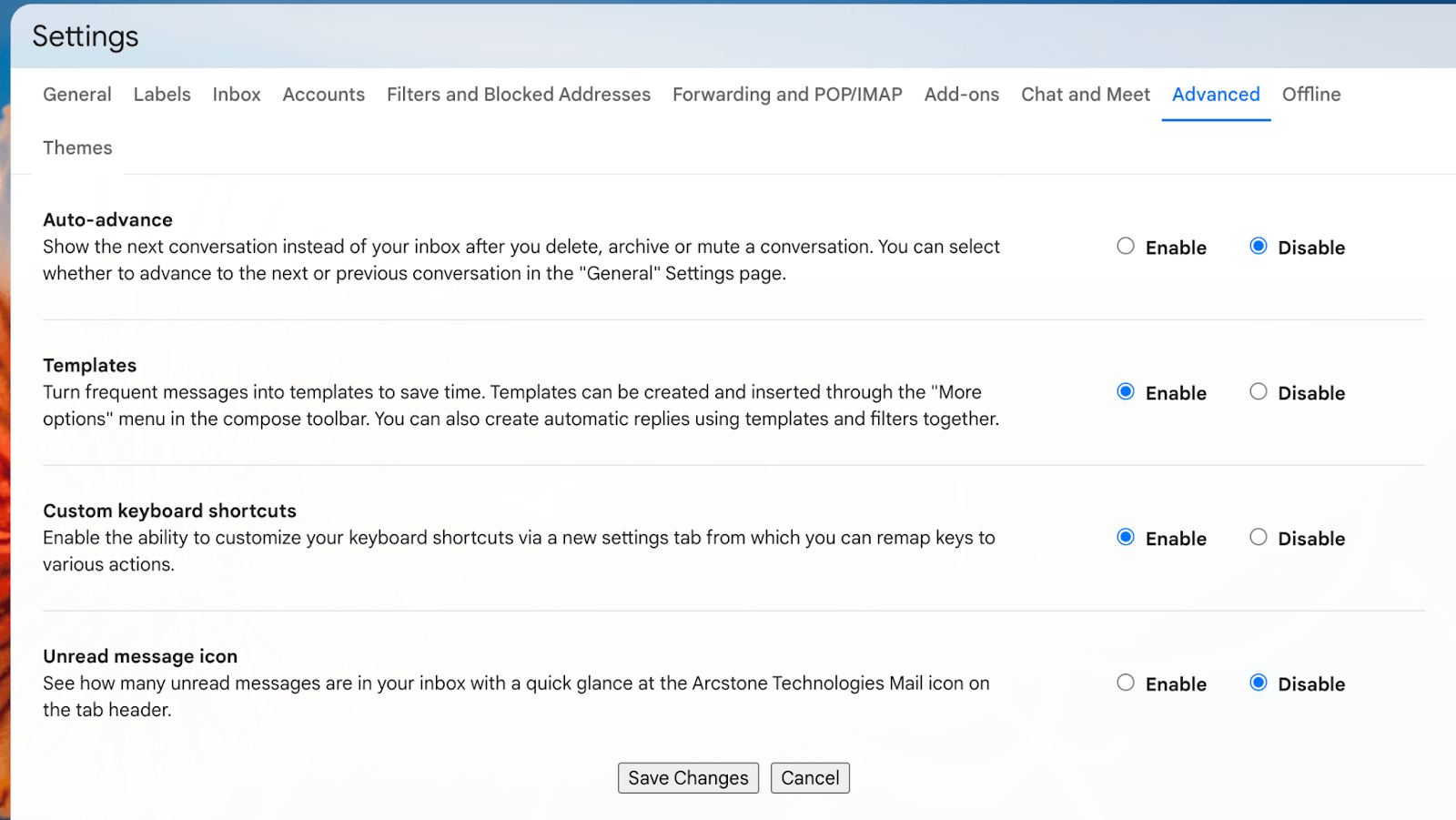
- In the Templates section, select Enable.
- At the bottom, click Save Changes.
how to Create an email template
- Click on the “Compose” button. The New Message window will open.
- Start typing your email template, and when you’re done, click on the three dots in the bottom-right corner of the compose window.
- Hover the option “Template” and next on “Save draft as template.”
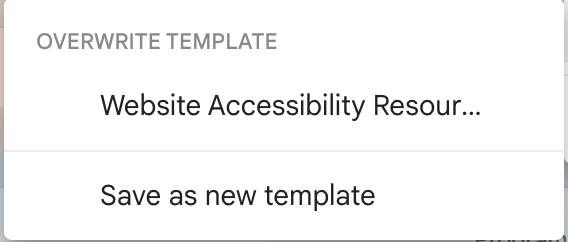
- Choose Save as new template”.
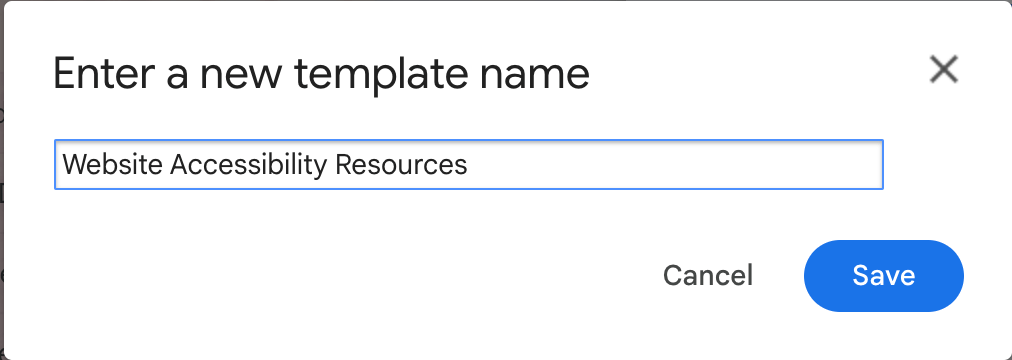
- Enter the name of the new template, then hit the save button.
Use Priority Inbox
Gmail users can create a Priority Inbox that prioritizes emails based on the sender or keywords. Doing so will move important messages to the top of your inbox.
how to turn on Priority Inbox
- In Gmail, click the settings gear in the top right corner.
- In the “Inbox type” section, select Priority Inbox.
- To customize priority inbox setting, click Customize.
- Choose the inbox sections you want to show. Save Changes.
Take an Email Break
Thin the Herd
Unroll.Me is a tool that allows you to unsubscribe from email lists and newsletters clogging your Inbox. Plus, it can “roll up” emails into one daily digest, so you don’t miss important information and aren’t flooded with notifications.